Physical cameras show the room. They rarely show the data that mattered on the workstation.
That gap appears in more places than most teams expect: cashier stations, control rooms, SCADA terminals, dispatch consoles, laboratory software, and back-office applications. When an incident review depends on what an operator clicked, acknowledged, or typed, overhead CCTV is not enough.
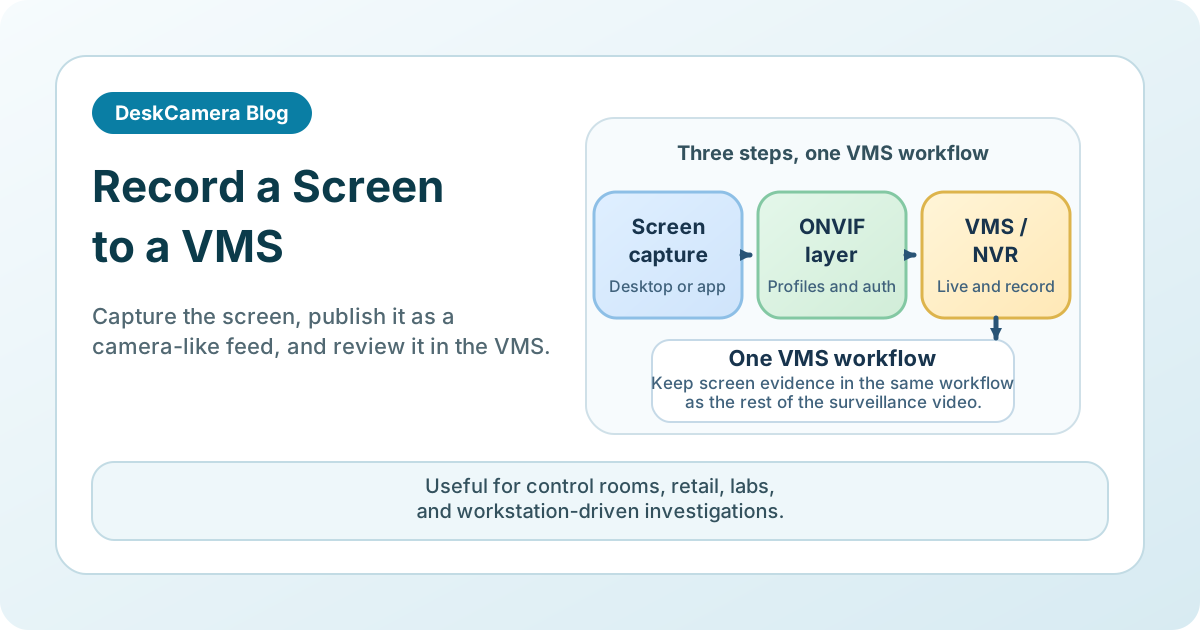
The practical way to solve this is to expose the workstation to the surveillance platform as a video source that the VMS can ingest reliably. DeskCamera is built around that model by turning a Windows PC into a virtual ONVIF camera with RTSP streaming support.
What “Screen Recording to a VMS” Usually Means
In a surveillance context, this is not the same thing as using a local screen recorder and saving MP4 files on the endpoint. Teams usually want four things:
- Live view in the VMS
- Recording on the same retention policy as other cameras
- Timeline alignment with physical cameras
- Standardized management through ONVIF or RTSP-friendly workflows
That is why software in this category is often deployed as a camera-emulation layer rather than a desktop recorder first.
Typical Capture Patterns
The right capture method depends on the workstation’s role.
Full desktop capture
Best for operator stations, teller desks, dispatch consoles, and other workstations with a defined review purpose.
Single application window
Useful when only one program matters, such as a POS client, SCADA or HMI application, or ticketing system. This reduces noise in the recording and can help with privacy scoping.
Multi-monitor capture
Common in control rooms and trading-style environments where evidence depends on more than one screen.
Screen plus webcam
Useful in labs, interview rooms, exam settings, and any environment where both the UI and the user context matter.
Screen plus audio
Relevant for call-handling, interview, training, or incident-response workflows where audio must stay aligned with screen activity.
DeskCamera supports these patterns directly, including multiple desktops, webcams, audio, user-defined screen areas, and picture-in-picture layouts.
A Practical Deployment Flow
In most environments, the workflow looks like this:
- Install the software on the Windows endpoint you need to monitor.
- Choose the media source: full screen, app window, webcam, audio, or a combination.
- Set the stream profile, bitrate, frame rate, and authentication to match your VMS policy.
- Add the endpoint to the VMS the same way you would add a camera or ONVIF device.
- Validate live view, recording, reconnect behavior, and retention.
The benefit of this model is operational consistency. The workstation becomes part of the surveillance environment instead of a separate island with its own recording workflow.
Real Deployments Using This Workflow
- Glen Collins, system integrator at Honeywell , replaced a physical video encoder connected to a second PC output with DeskCamera for 24/7 screen recording into a VMS.
- Vivek Kumar at VERACITY INDIA records dual-monitor security control rooms across cities into standard NVRs over ONVIF with low CPU load per workstation.
- Duncan Watson at Universal Studios Japan runs DeskCamera in a VM so an application screen can be pushed into the surveillance system for shared playback and event review.
Each deployment solves a different version of the same problem: replacing a hardware encoder, recording multi-monitor control rooms, or bringing a VM application screen into the surveillance workflow.
Teams use the same approach for dispatch desks, operator workstations, SCADA consoles, warehouse and packing applications, kitchen displays, POS screens, and live dashboards that need to be reviewed inside the VMS. It often replaces hardware encoders, HDMI interceptors, a camera pointed at the monitor, generic RTSP tools, or no workable solution at all.
Operational Considerations Before a Rollout
Before rolling this out widely, check the points that usually cause friction later.
Performance
Screen capture is not free. If the endpoint also runs production software, use hardware-assisted encoding where possible and test realistic workloads rather than an idle desktop. DeskCamera supports GPU acceleration through Intel QSV, NVIDIA NVENC, and AMD VCE, which is the right direction for this type of deployment.
Resolution and readability
Text-heavy screens need different encoding settings than corridor cameras. A blurry 1080p stream can be useless if the investigation depends on small fonts or dense UI layouts.
Network and storage
Screens with lots of motion, pop-ups, or cursor activity can compress differently from static cameras. Retention planning should be based on actual test recordings, not assumptions carried over from CCTV defaults.
Startup and session behavior
If the screen is being treated like a camera, test reboot, reconnect, sign-out, and logon behavior as part of acceptance, not after rollout. Shift changes and normal workstation handoff are where weak implementations usually show up.
Privacy and policy
Screen recording can capture credentials, personal data, payment workflows, or clinical information. The technical deployment and the governance policy have to be aligned.
Authentication and device handling
If the goal is clean VMS integration, validate discovery, authentication, reconnect behavior, and how the device appears to operators. That is often the difference between a pilot that works and an operational tool that stays in service.
Where This Model Works Best
This approach is strongest when teams already rely on a VMS and want screen evidence inside the same system.
- Retail: cashier workflows, self-checkout review, refund and void investigations
- Control rooms: operator accountability and event reconstruction
- Manufacturing: HMI, SCADA, and alarm review
It can also fit narrower environments where the review question, workstation scope, and retention rules are clearly defined.
- Banking: teller, ATM, and back-office workflows with tightly scoped workstation recording
- Controlled healthcare and education labs: training, simulation, and workstation review
If your main use case is retail, see POS screen recording for retail VMS deployments .
If the driver is OT or industrial operations, see SCADA and HMI screen recording for VMS and NVR .
If the review need is teller, ATM, or back-office workflow context, see Bank workstation and ATM screen recording in a VMS .
If the environment is a simulation suite or controlled clinical room, see simulation lab and clinical workstation recording for VMS .
Where DeskCamera Fits
DeskCamera fits when the requirement is not just to record the screen, but to make it behave like part of the surveillance estate rather than a separate archive that has to be checked somewhere else.
If you need the architectural background first, read Can a PC Act as an ONVIF IP Camera? .
Next Step
If you are piloting this model, validate the points that usually decide whether it works in production: source type, VMS and ONVIF handling, playback readability for real UI text, and reboot or sign-out behavior on the target workstation.
Then review the DeskCamera feature set against that checklist and, if the fit is right, start a free trial .