Yes, but not natively.
A standard Windows workstation can capture a desktop, webcam, or application window and send video over the network. The harder part is making that workstation behave like a camera that a Video Management System can discover, authenticate, configure, and record without special handling.
That distinction matters in real deployments. Security teams do not usually want “just another video stream.” They want the workstation to appear in Milestone, Genetec, Nx Witness, or another VMS as a manageable endpoint alongside physical cameras.
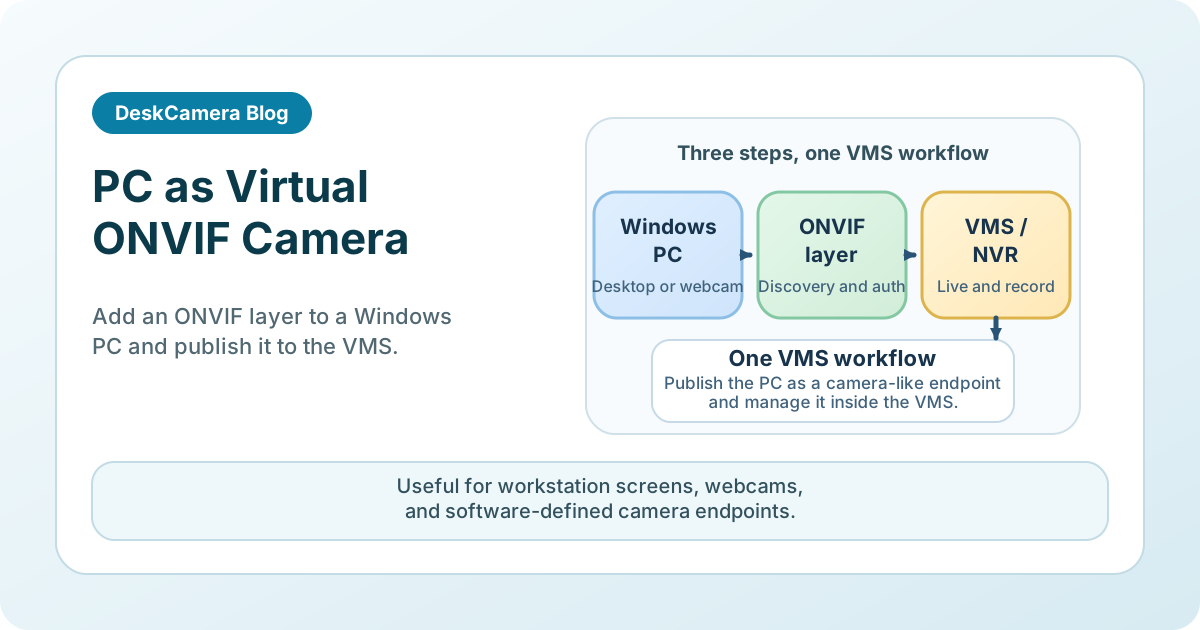
This is where virtual ONVIF camera software comes in. Products such as DeskCamera add the ONVIF device layer that a normal PC does not have on its own, allowing screens, webcams, audio, and other media to be treated as VMS-ready sources.
What a VMS Expects from an ONVIF Camera
An ONVIF camera is more than an RTSP sender. In a typical VMS workflow, the device is expected to provide:
- Discovery on the network
- ONVIF device and media services
- Authentication that the VMS can use consistently
- Stream profiles and parameters the VMS can query
- Predictable behavior during recording, reconnection, and configuration
A desktop capture tool can generate video, but that alone does not make it an ONVIF device. If the VMS cannot discover it or treat it like a normal camera, operations teams end up with a fragile workaround instead of a clean integration.
That is why the phrase “PC as an ONVIF camera” usually means “PC plus software that emulates camera behavior.” If you are still deciding which category of tool you actually need, see ONVIF Software for Windows: Viewer, Recorder, or Virtual Camera? for the trade-offs between an ONVIF viewer, an ONVIF NVR, and a virtual camera.
Why RTSP Alone Usually Falls Short
RTSP is often enough to move video from point A to point B. It is not always enough to satisfy how surveillance teams actually deploy and manage devices.
In practice, RTSP-only approaches often create one or more of these problems:
- The stream has to be added manually instead of discovered automatically.
- Operators cannot manage it in the same way as other ONVIF endpoints.
- Authentication and profile handling differ from the rest of the estate.
- VMS-side assumptions about device capabilities do not line up cleanly.
That does not make RTSP useless. It is still the transport layer many ONVIF workflows rely on. The point is that RTSP and ONVIF solve different problems. RTSP moves media. ONVIF makes the endpoint behave like a camera inside the surveillance platform.
If your source is already RTSP or MJPEG and the missing piece is ONVIF compatibility, see How to Convert RTSP or MJPEG Streams to ONVIF .
Common Ways to Bring a PC Screen into a VMS
There are four common approaches, and they are not equivalent.
1. Screen recorder plus exported video
This is fine for local auditing or training. It is usually the wrong fit when the security team wants the screen visible and recordable inside the existing VMS.
2. RTSP-only desktop streaming
This can work when the VMS is happy with manual stream ingestion and limited device behavior. It is better than offline recording, but still not the same as adding a camera-grade endpoint.
3. Hardware encoder
An external encoder is often robust, but it adds hardware cost, cabling, power, maintenance, and another failure point. It also scales poorly when the requirement spans dozens or hundreds of Windows endpoints.
4. Virtual ONVIF camera software
This is usually the cleanest software-only route. The workstation remains the video source, but the software exposes it as an ONVIF-capable device. That is the model used by DeskCamera.
Where a PC-Based ONVIF Camera Makes Sense
The strongest use cases are the ones where the important evidence is on the screen rather than in the room.
- Retail and self-checkout: cashier actions, voids, overrides, and transaction context
- Control rooms: what the operator actually had on screen during an incident
- Manufacturing and SCADA: HMI changes, alarms, process values, and operator response
- Banking and ATM workflows: workstation activity and transaction-screen context
- Controlled healthcare and education labs: application screens that need to be reviewed alongside room video
For a more implementation-focused walkthrough, see How to Record a Computer Screen to a VMS .
If the target environment is a simulation suite or another controlled clinical room, see simulation lab and clinical workstation recording for VMS .
Real Deployments Using the PC-as-Camera Model
- Glen Collins, system integrator at Honeywell , uses DeskCamera to record a screen into a VMS 24/7 instead of keeping a physical encoder on a second PC output.
- Vivek Kumar, country director at VERACITY INDIA , uses DeskCamera to record dual-monitor security control room workstations into standard NVRs over ONVIF.
- Duncan Watson, network systems manager at Universal Studios Japan , runs DeskCamera in a VM so an application screen can be pushed into the surveillance system for playback and event review.
Each deployment solves a different version of the same problem: replacing a hardware encoder, treating a control-room workstation like a camera source, or exposing a virtual machine screen to the VMS without rebuilding the review workflow around a separate tool.
What to Validate Before You Deploy
Even when the concept is right, there are practical checks that matter.
Host requirements
Validate the current Windows and hardware-acceleration requirements against DeskCamera’s documentation before rollout. On a busy workstation, the exact host image, graphics stack, and encoding path matter as much as the ONVIF workflow itself.
Network design
The endpoint is now part of the surveillance estate. Plan its addressability, authentication, firewall rules, and the way it will be segmented from the rest of the network.
Recording policy
Screens often contain more detail than hallway cameras. Bitrate, frame rate, resolution, and retention should be set with investigation needs in mind, not copied blindly from physical camera profiles.
Privacy and compliance
If workstations display personal data, payment information, medical context, or other regulated data, the surveillance policy needs to be explicit. Review DeskCamera’s compliance statement for its public position on ONVIF conformance, privacy, and operational security.
Where DeskCamera Fits
DeskCamera is not a generic screen recorder marketed as a security tool. It is designed around VMS integration:
- It exposes Windows media sources as a virtual ONVIF camera.
- It supports RTSP alongside the ONVIF layer.
- It can stream desktops, webcams, audio, user-defined screen areas, and external HTTP or RTSP feeds.
- It works with established surveillance platforms including Milestone, Genetec, Nx Witness, and Synology Surveillance Station.
That combination makes sense for teams that already have a VMS and want to add screen evidence without introducing hardware encoders at every endpoint.
Related Reading
- ONVIF Software for Windows: Viewer, Recorder, or Virtual Camera?
- How to Record a Computer Screen to a VMS
- How to Convert RTSP or MJPEG Streams to ONVIF
Next Step
If you are evaluating a PC-as-camera workflow, start with the DeskCamera feature set , review the security and privacy position in the compliance statement above, and if the model fits your environment, start a free trial .